Local Testing
Browsers block local files, so you can’t just double-click index.html to preview your story.
This is a security feature called the same-origin policy—it prevents malicious websites from reading files on your computer. Unfortunately, it also blocks your files from loading each other locally.
Here are your options, from least to most technical, all quick and easy!
Table of Contents
1. Skip Local Testing
The simplest approach in terms of setup: don’t test locally at all.
- Publish to itch.io in Draft mode (only you can see it)
- Test your story there
- Make changes, re-upload, repeat
- Set to Public when ready
This is perfectly fine for small projects or your first story!
But it can become tedious for testing long stories that you work on often.
You might want to be able to see a preview of your story with the template on your local computer before publishing it online. In that case, you can use any of the following options.
2. Servez
Servez is a free app that runs a local server. It’s dead simple to use and works on all platforms.
- Download Servez for your system from the releases page:
- Windows:
Servez.Setup.x.x.x.exe - Mac:
Servez-x.x.x.dmg(orarm64.dmgfor Apple Silicon) - Linux:
Servez-x.x.x.AppImage
- Windows:
- Install and open Servez
- Click Folder and select your template folder
- Click Start
- Click Launch Browser (or visit the URL shown in your browser, by default
http://localhost:8080)
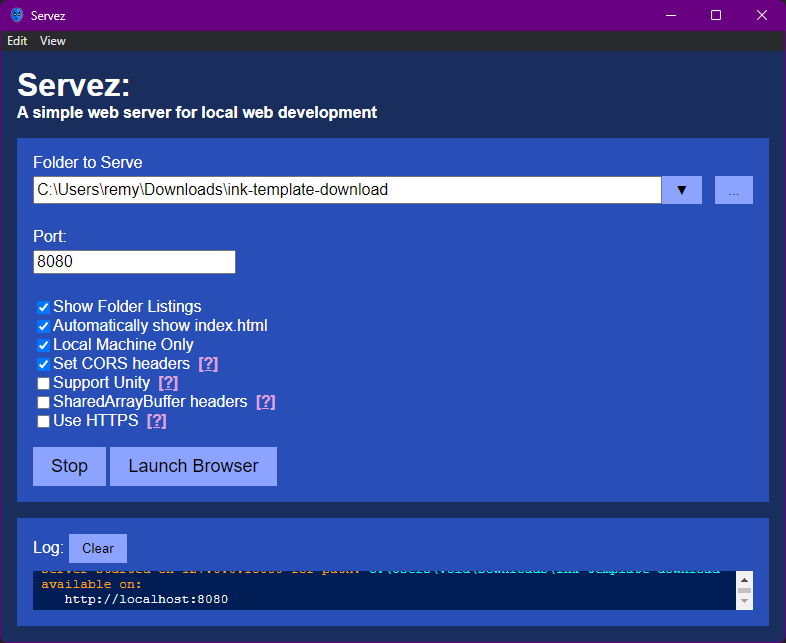
Leave Servez running while you work. Export your story.json into the template folder and refresh the browser to see changes (you might have to force refresh with ctrl+shift+R, or cmd+shift+R on MacOS).
3. VS Code + Live Server
If you’re using VS Code, the Live Server extension makes local testing easy.
- Install the Live Server extension
- Open your template folder in VS Code
- Right-click
index.html> Open with Live Server - Your story opens in the browser and auto-refreshes when you save changes!
But don’t forget—you still have to compile your .ink files to story.json to see any changes in the preview. See the Intermediary Guide for a guide on setting up a shortcut in VS Code to quickly compile to JSON with inklecate.
4. Command Line
If you’re comfortable with the command line, you have several options to quickly spin up a server.
Python
MacOS/Linux:
Python usually comes pre-installed on Mac/Linux. All you have to do is navigate to your template folder and start the server:
cd path/to/your/template
python3 -m http.server 8000
Windows:
On Windows, you might need to install Python first—just type python3 in the command line and Windows will prompt you to install it from the Microsoft Store.
Then navigate to your template folder and start the server:
cd path\to\your\template
python3 -m http.server 8000
After starting the server:
Visit http://localhost:8000 in your browser. Keep it running while you work, export your story.json when you want to preview and refresh your browser to see the latest changes.
Press Ctrl+C to stop the server when done.
Alternative CLI options
Node.js: (requires Node.js)
npx serve .
Then visit http://localhost:3000.
PHP: (requires PHP)
php -S localhost:8000
Then visit http://localhost:8000.
Many other tools can serve static files—use whatever you’re comfortable with!
Questions? Open an issue on GitHub.